Updating xPilot
When xPilot launches, it automatically checks for new versions. If an update is available, you will be prompted to install it.
X-Plane and xPilot must be closed before updating.
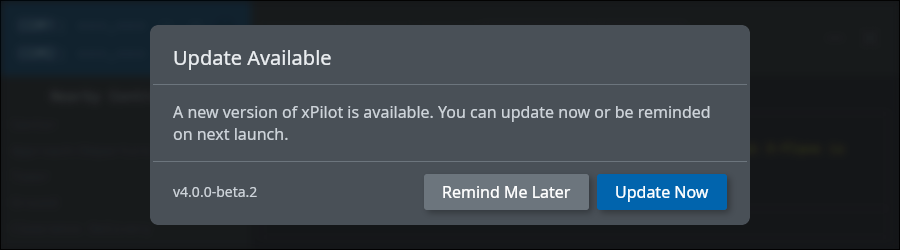
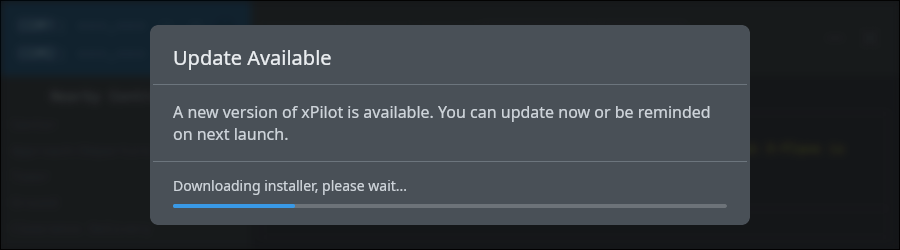
If you choose to update immediately, xPilot downloads the updater and then launches it for you.
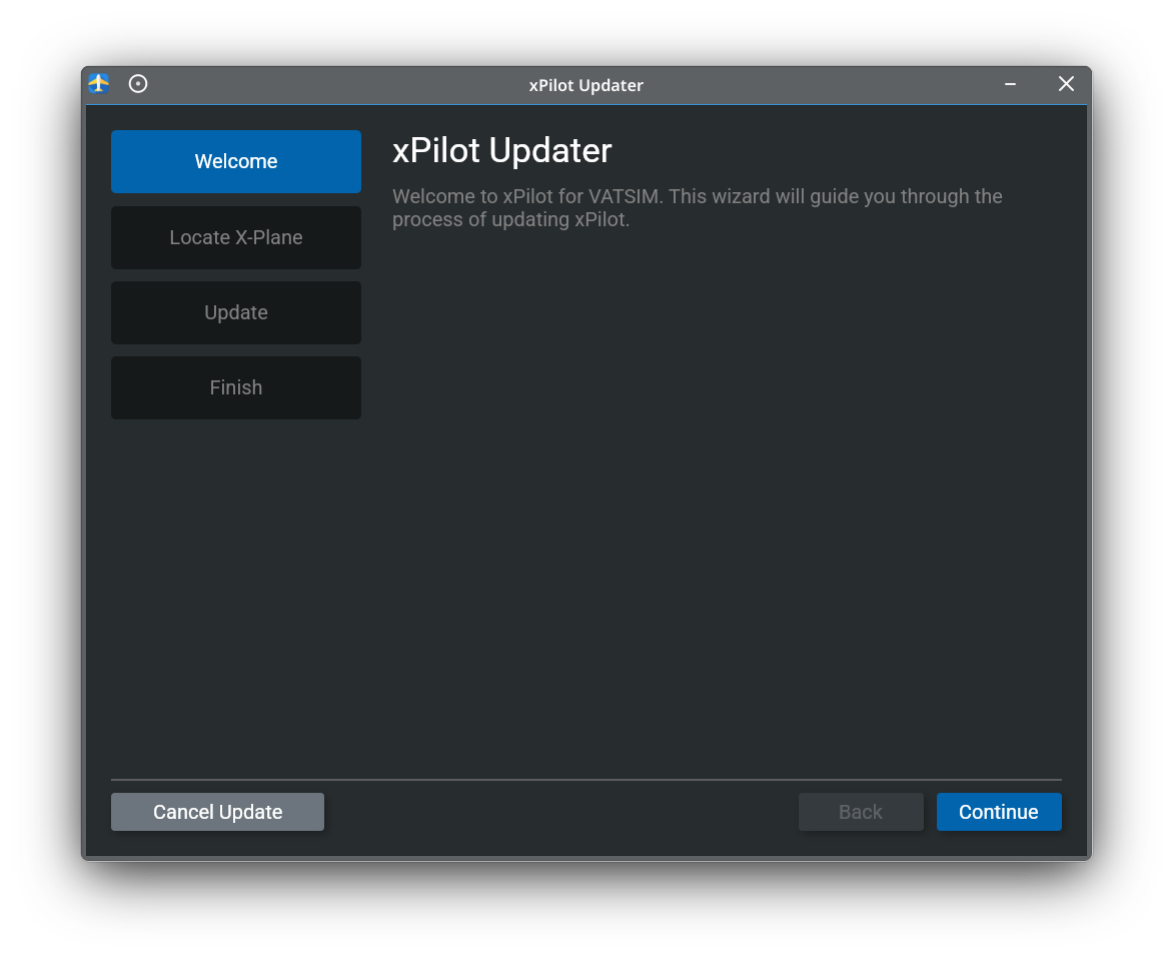
After the updater opens, it will guide you through the rest of the update process.
Welcome
When the updater opens, click Continue to begin.
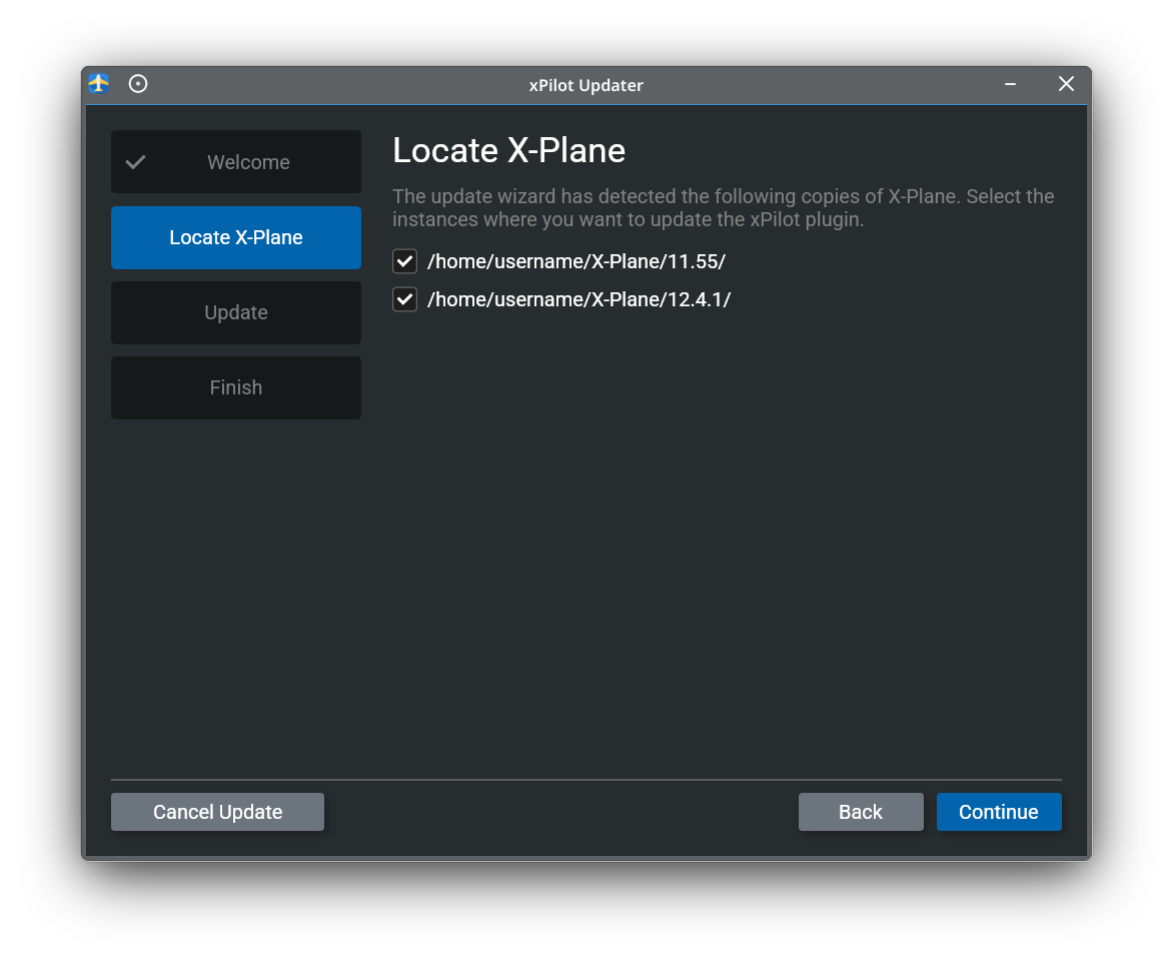
Locate X-Plane
The updater will detect supported X-Plane installations on your system. Select each X-Plane instance where you want the xPilot plugin updated, then continue.
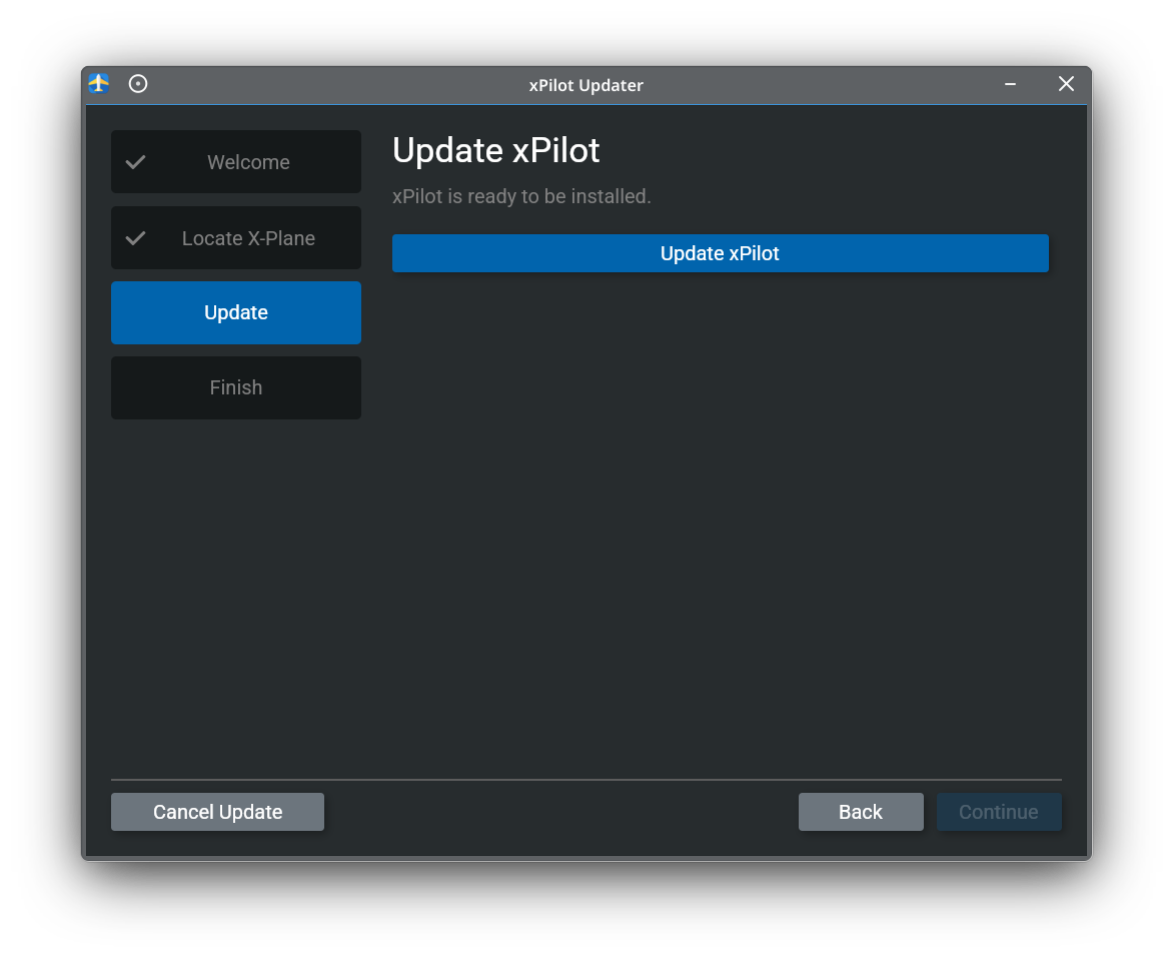
Update xPilot
Click Update xPilot to begin downloading and installing the latest version.
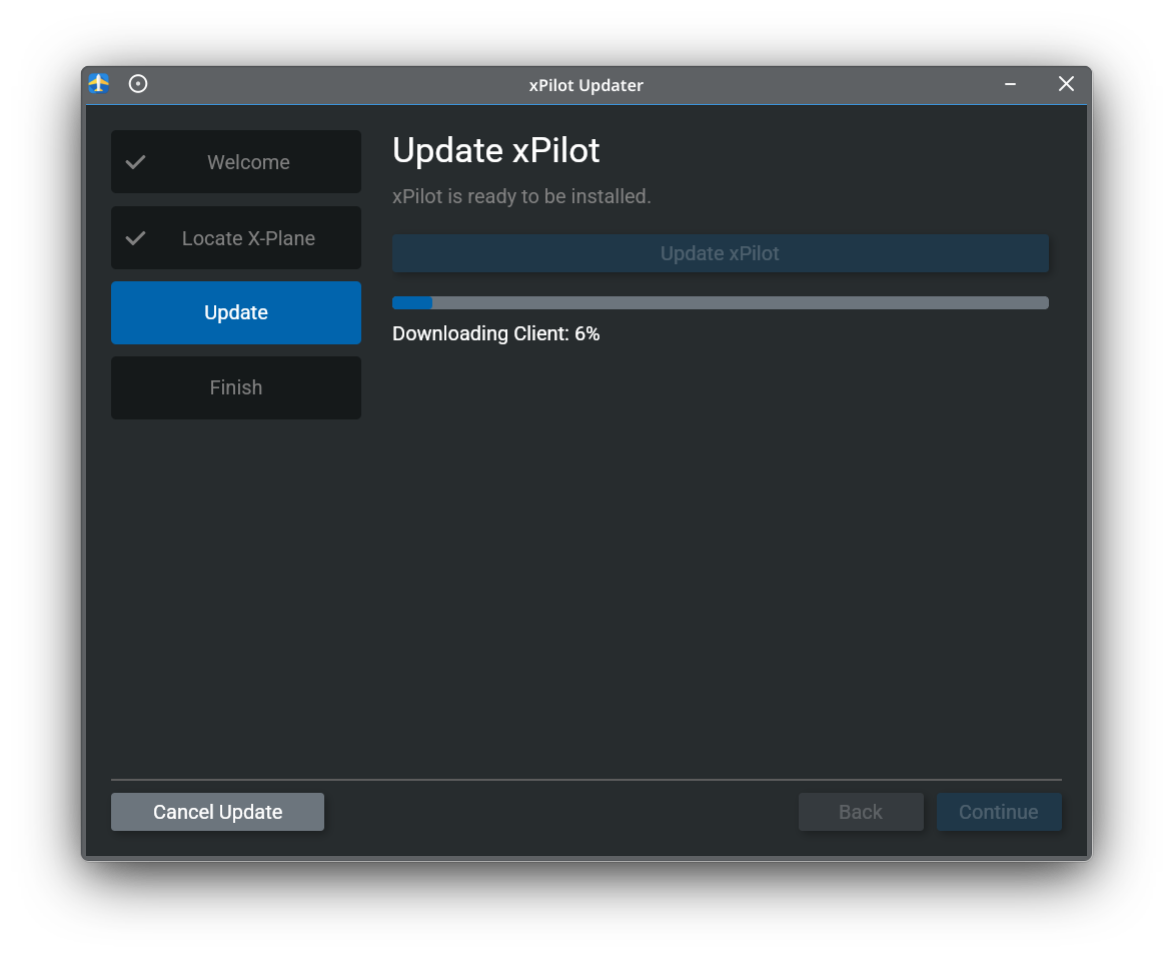
The updater will show progress while it downloads and installs the update. Wait for this step to finish before continuing.
Finish
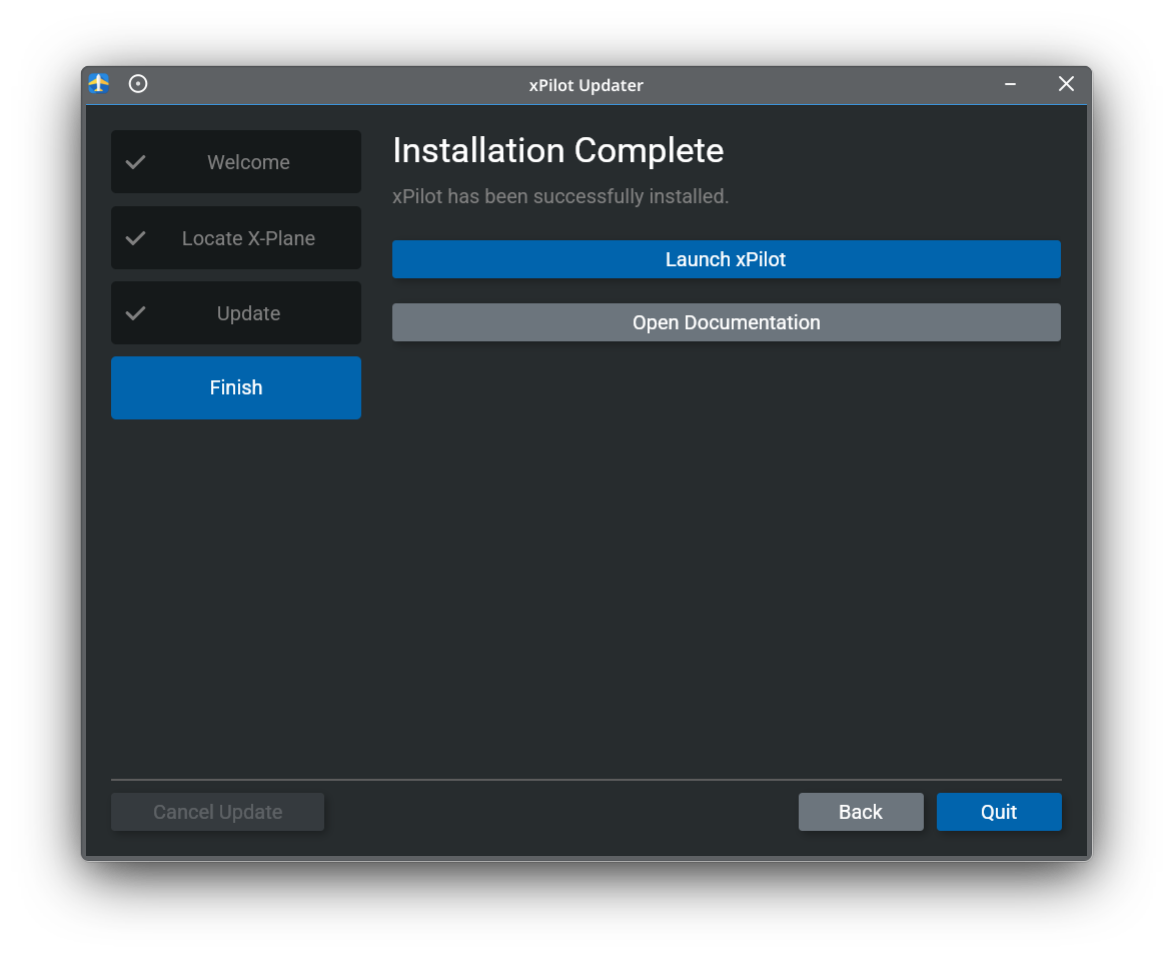
When the update is complete, you can launch xPilot directly from the updater or open the documentation from the final screen.