Settings
Open the xPilot settings window by clicking the button in the client.
Push to Talk
Push to Talk (PTT) is configured in X-Plane, not in the xPilot client. For setup instructions, see Push to Talk.
Network
Use the Network tab to enter your VATSIM credentials before connecting.
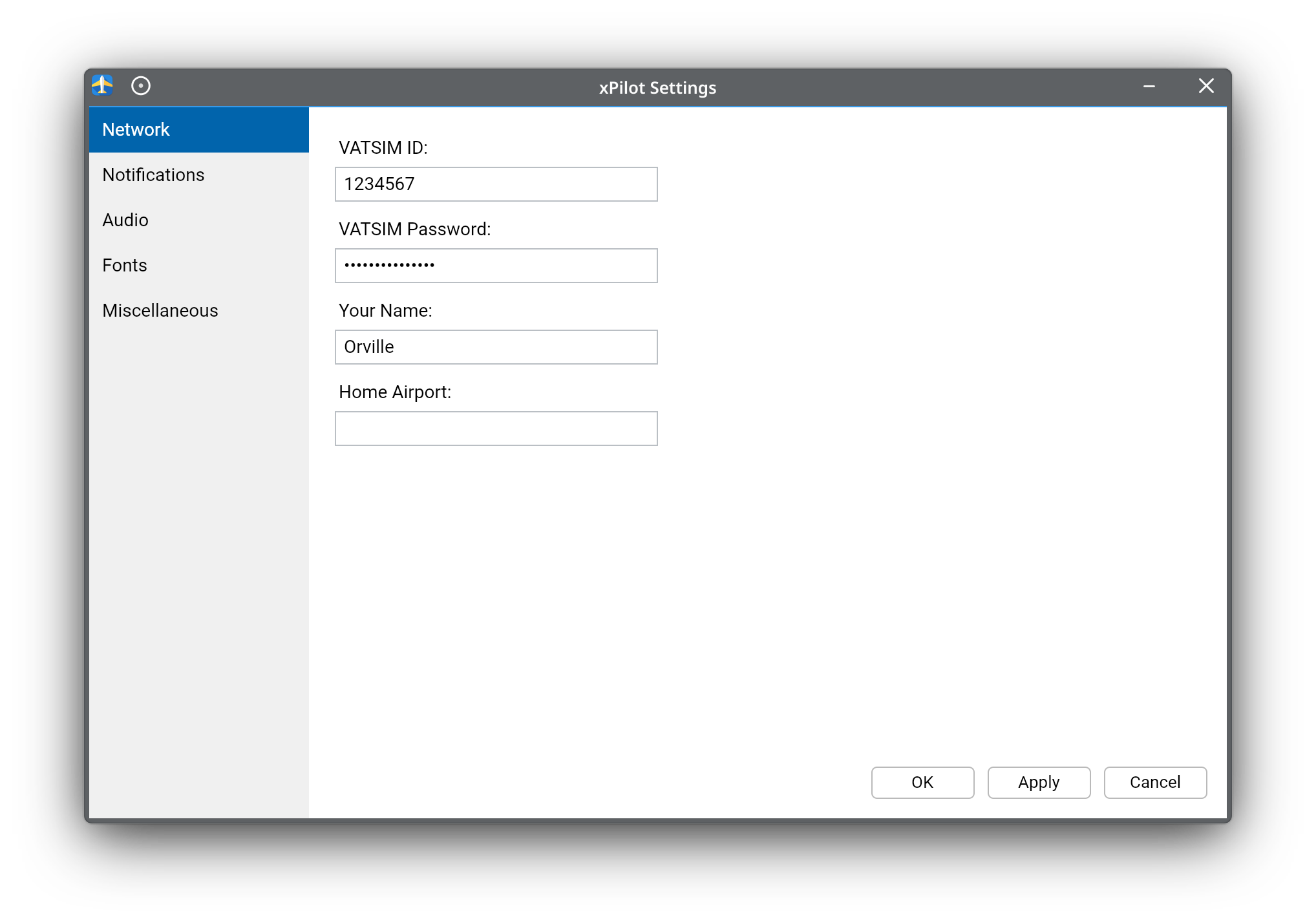
The VATSIM ID, VATSIM Password, and Your Name fields should match your VATSIM account details.
The Home Airport field is optional. If provided, it will be displayed next to your name while connected.
Notifications
Use the Notifications tab to choose which events trigger an aural alert.
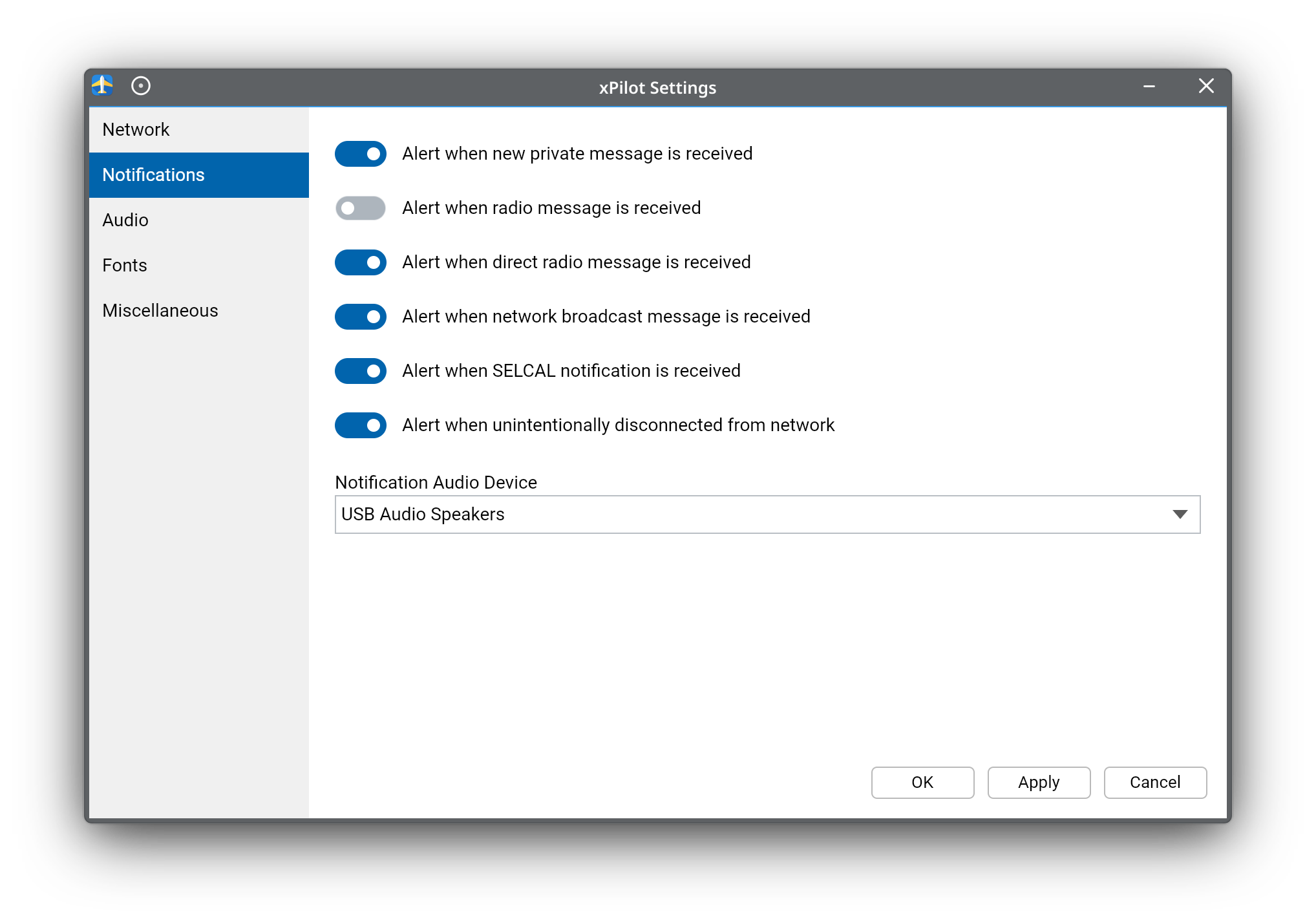
You can enable notifications for:
- New private messages
- Radio messages
- Direct radio messages
- Network broadcasts
- SELCAL notifications
- Unexpected disconnects from the network
Notification Audio Device: Selects which output device xPilot uses for notification sounds. If no device is selected, the system default audio device will be used.
Audio
Use the Audio tab to choose your input and output devices and adjust radio audio behavior.
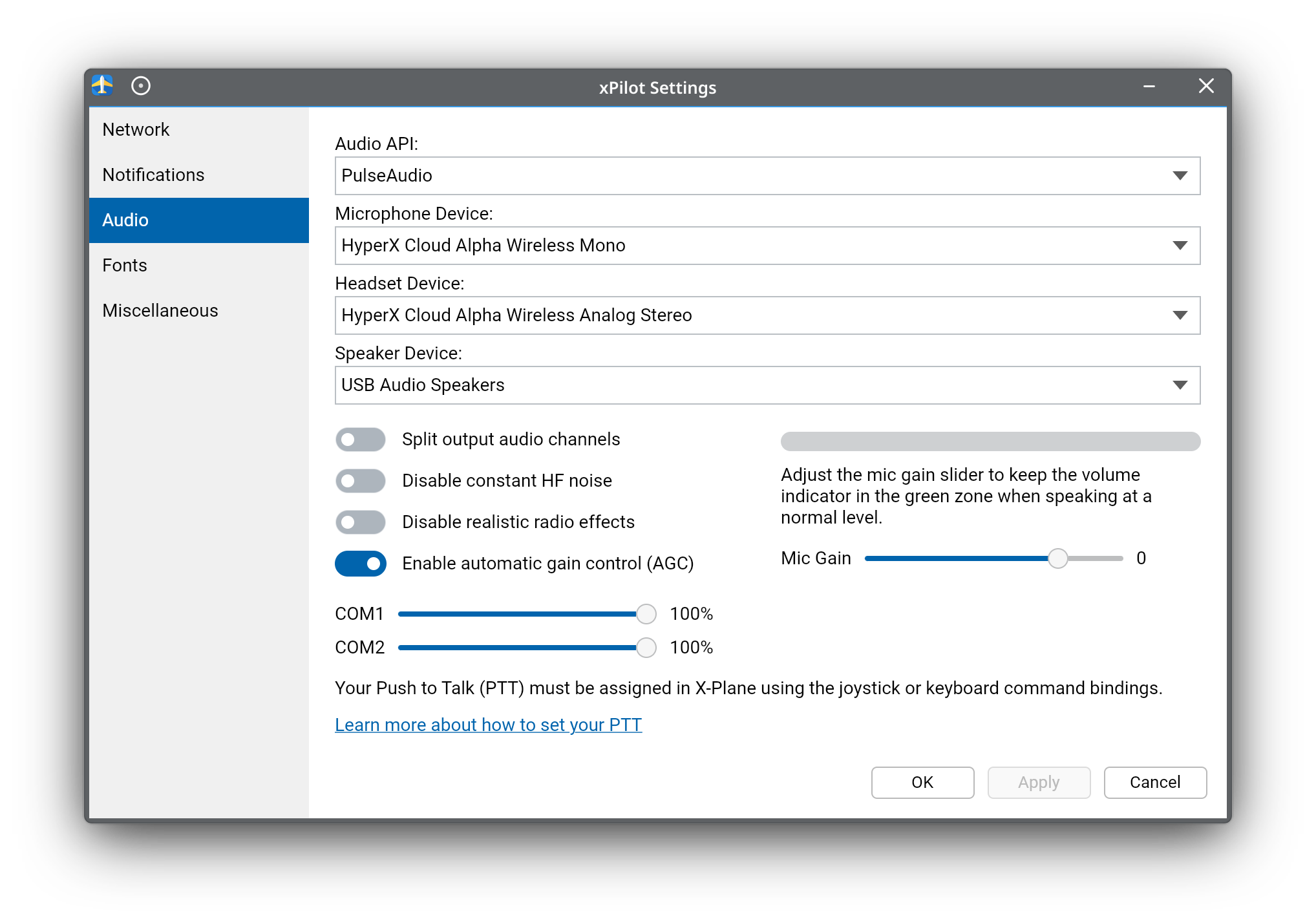
The Audio API dropdown selects the audio backend used by xPilot. In most cases, the default option is the right choice.
The Microphone Device is the input used for voice communication on VATSIM. After changing microphones, adjust Mic Gain so the indicator stays in the green range while speaking normally.
The Headset Device and Speaker Device are the output devices used for radio audio. You can route COM1 and COM2 audio to different devices if you want to separate them via the radio panel.
Split output audio channels: Routes COM1 audio to the left ear and COM2 to the right ear when both radios share the same output device.
Disable constant HF noise: Disable the continuous background noise on high-frequency (HF) radios.
Disable realistic radio effects: Turns off the radio simulation post-processing (EQ, bandpass filtering, and static) so incoming voices are heard as clean, unfiltered audio. Not recommended.
Enable automatic gain control (AGC): Automatically levels incoming voice audio so quiet talkers are boosted and loud talkers are controlled, keeping perceived loudness consistent across all users without amplifying background noise.
The COM1 and COM2 sliders adjust the receive volume for each radio in xPilot.
Volume changes made within the aircraft are not reflected in the xPilot sliders, and adjustments made in xPilot are not synced back to the aircraft.
Fonts
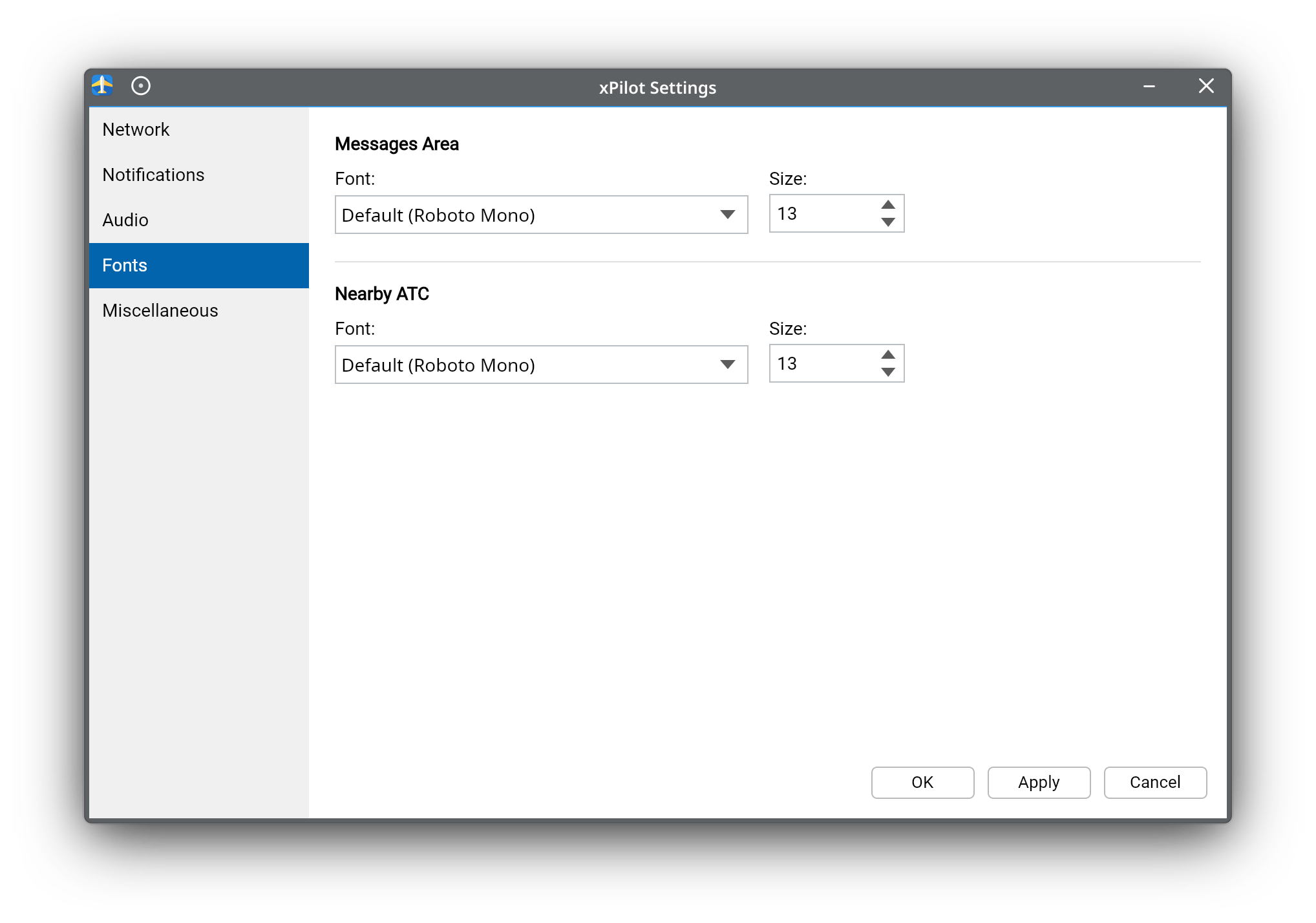
Use the Fonts tab to control the font family and text size for the Messages Area and Nearby ATC panel.
Miscellaneous
Use the Miscellaneous tab for a few general client behaviors.
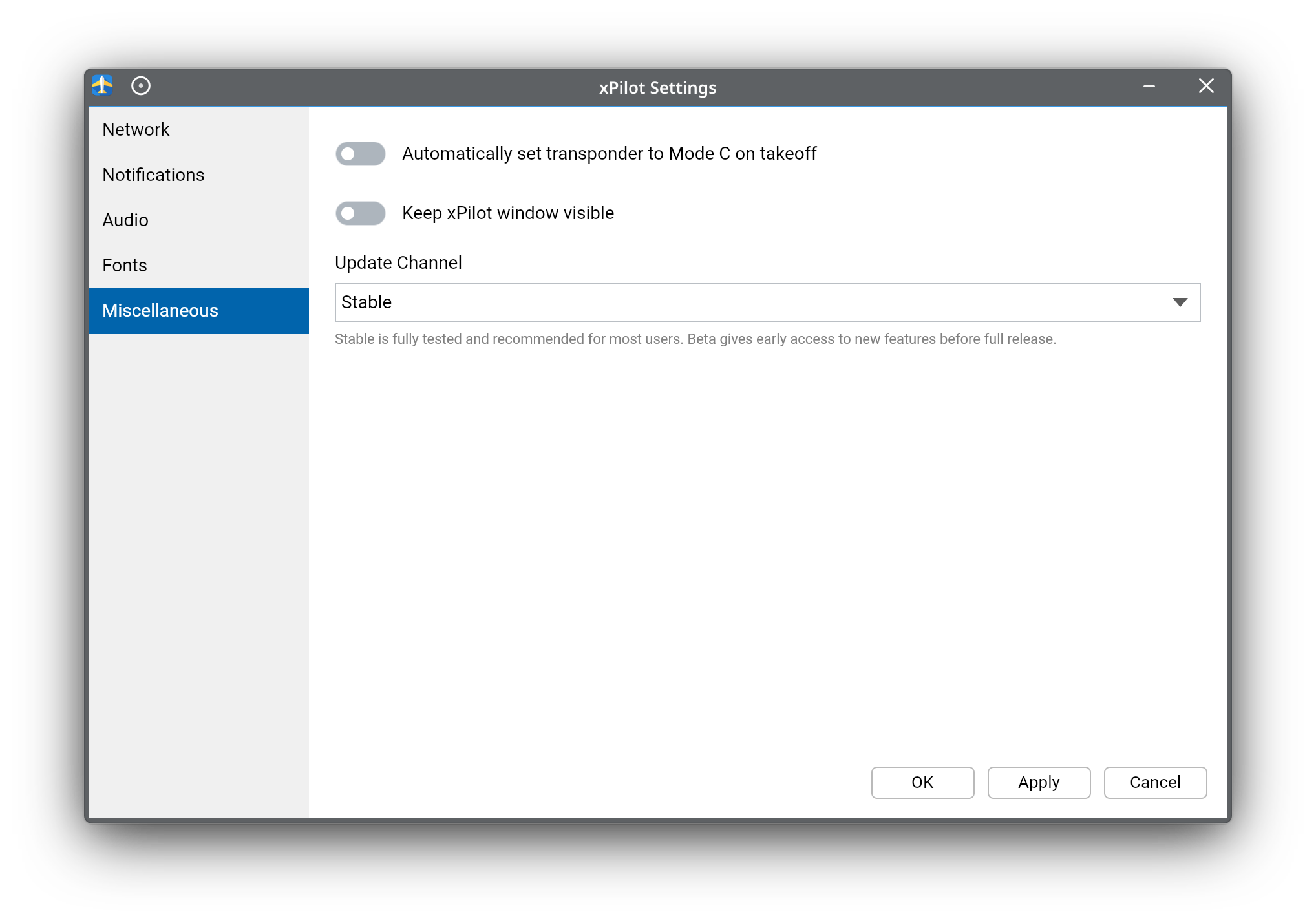
Automatically set transponder to Mode C on takeoff: When enabled, xPilot automatically switches your transponder to Mode C after takeoff.
Keep xPilot window visible: Keeps the xPilot client window on top of other applications.
Update Channel: Determines whether xPilot checks for Stable or Beta releases. The Stable channel is recommended for most users.